Your first five minutes
If you are not going to read the whole manual — and nobody does — read this. Six steps that take you from nothing to your first number. Each one is explained properly further down; this is just the order.
| Step | What you do | How you know it worked |
|---|---|---|
| 1 | Install KRUDAMIX and open it. Paste your KRUDA-···· key. |
You are in. You will not be asked for the key again. |
| 2 | Close Ableton, open it again, and in Preferences → Link/MIDI pick KRUDAMIX as a Control Surface. | Top right in KRUDAMIX you get
Live · N tracks · N BPM in green. |
| 3 | Open your song in Ableton and drag the KRUDAMIX Meter device onto the end of your buses. | The orange "To be able to measure" card disappears. |
| 4 | In KRUDAMIX: + New and type your song's name. | It shows up in the dropdown at the top. |
| 5 | Press Save a session snapshot. | The Structure screen shows your tracks and your plugins. |
| 6 | Export a WAV of your song and press Measure a render. | Your first numbers are in Measurements. |
Steps 2 and 3 are done once
The Control Surface is for good. The meter has to go on each new song, but that is ten seconds of dragging. Everything else is day-to-day.
If something is off, look at the top right
That label answers 80% of "it doesn't work". If it says
Live no responde, the problem is in step 2 and nowhere else.
KRUDAMIX is the control desk, not the one doing the mixing
It reads your Ableton session and tells you about it in numbers: what tracks are there, what devices, what you have measured, what phase you are in and what is pending. It does not move a fader. The one who mixes is the engine — a mixing session working on the song — and KRUDAMIX is the window from which you set it going, stop it, and see what it has done.
The rule that never breaks
Everything you see in KRUDAMIX comes from reading Ableton and the disk. The application does not write to your mix. The only exception is the Undo button, which puts the last parameter touched back to its previous value — and it goes through the same safety policy as everything else.
Four pieces, and one of them holds the whole thing up
KRUDAMIX does not talk to Ableton by magic. It talks through a Remote Script that lives inside Live and listens on a port of your own computer. That piece is the cable. Without it the window opens just the same and sees nothing — so it is worth knowing it exists before anything else.
If you take one idea from this manual
Everything KRUDAMIX knows about your session comes in through the Remote Script, and everything it can say about your sound comes from the KRUDAMIX Meter or from a render. Those two pieces live inside Ableton, not inside KRUDAMIX. When something "does not show up", it is almost always one of the two.
KRUDAMIX and the engine are not the same thing
KRUDAMIX watches: it reads, measures, records and shows you. The engine works: it decides and touches the session. They share the same cable and the same data folder, but they are two programs. You can use KRUDAMIX without the engine every day — that is what most people do.
The Remote Script is derived from ableton-mcp by Siddharth Ahuja, published under the MIT licence. The copy you install carries its licence beside it, in the same folder.
What each piece does, and what happens if it is missing
| Piece | Where it lives | If it is missing |
|---|---|---|
| Remote Script the cable |
Inside Live, in Documents\Ableton\User Library\Remote Scripts\KRUDAMIX.
You also have to select it in Preferences → Link/MIDI as
a Control Surface: having it in place is not enough. |
KRUDAMIX opens, but the top bar says Live no responde and the Work,
Project and Structure screens stay empty. |
| KRUDAMIX Meter .amxd |
A Max device on every bus you want to measure. The installer leaves it in your Ableton User Library; putting it on the buses is up to you. KRUDAMIX does not install devices: writing to your session is not its business. | The "To be able to measure" card appears, telling you which buses are missing one. Without a meter there is no live measurement — but measuring a render still works. |
| KRUDAMIX | The program, in %LOCALAPPDATA%\Programs\KRUDAMIX.
Your mixes are NOT there: they go to Documents\KRUDAMIX,
and you choose that folder in Profile. |
— |
| The engine Claude Code + MCP |
Outside the installer: a separate install, with its MCP servers and the methodology. The MCP servers are what give it hands: that is how it writes to the session, and every write goes through the safety policy. | The Start the engine button does not appear, and a line in its place explains why. Everything else in KRUDAMIX works the same. |
How to tell at a glance that the cable is in
Top right, in the title bar. If the cable works it says
Live · 45 tracks · 127 BPM with a green dot — it is telling you what it
sees right now in your session. If it says Live no responde,
there is no cable: either Live is closed or the Control Surface is not selected. That
label is the first thing to look at when something does not add up.
Four things, and two of them live inside Ableton
If any is missing, KRUDAMIX opens anyway and tells you in the top bar — instead of showing you old numbers as if they were current. The first two are the application; the middle two are the ones you set up in Live once and never touch again.
Ableton Live 12, open
With the project you want to look at. KRUDAMIX does not open sessions or read
.als files: it asks about what is loaded right now. If Live
is closed, the top right says Live no responde.
The Remote Script, in place and selected
This is the cable. It is copied into the Ableton User Library and then it has to be selected in Live's preferences. Both things: in place but not selected does nothing at all, and that is the most common mistake. Step by step below.
The KRUDAMIX Meter on your buses
The measuring tool. The installer leaves it in your User Library; dragging it onto the buses is up to you, because placing a device means writing to your session and KRUDAMIX will not do that on its own. Without it there is no live measurement — measuring a render still works.
Your licence
A KRUDA-···· key, 25 characters including the dashes. Without it the
window does not get past the first screen — and until then it has asked Ableton
nothing.
Putting the cable in, once
Five minutes on day one and you never touch it again. If you used the installer, step 1 may already be done.
-
Copy the Remote Script folder
The whole folder — with its
__init__.pyinside — goes here:Documents\Ableton\User Library\Remote Scripts\KRUDAMIX
If the
Remote Scriptsfolder does not exist, create it with exactly that name. -
Restart Ableton
Live only looks for Remote Scripts when it starts. Copying the folder with Live open does nothing, and it looks like it is broken.
-
Select it as a Control Surface
In Preferences → Link · Tempo · MIDI, in the table at the top, open a free Control Surface slot and choose
KRUDAMIX. Input and Output stay on None: it is not a MIDI keyboard, it needs no ports. -
Check that there is a cable
Open KRUDAMIX and look at the top right. If it says
Live · N tracks · N BPMwith a green dot, you are done: it is reporting your actual session.
Why both steps are needed
Copying the folder shows the script to Live. Selecting it in preferences is what starts it. A script that is copied but not selected never runs, never opens the port and KRUDAMIX cannot find it — and there is no message saying so, because from the outside it looks exactly like Live being closed.
One port on your own machine, nothing more
The cable is a connection to 127.0.0.1:9877, which is your own
computer talking to itself. It does not go out to the internet, it opens nothing
outward and there is no server involved. The only thing that does use the network
is the licence check, once a day.
What it looks like on your screen
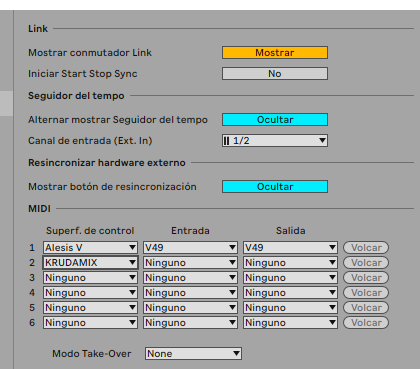
The two screens where everybody gets stuck, with the exact spot marked. If yours looks like this, you are fine.
 1
2
3
1
2
3
-
Control Surface → KRUDAMIX
Any free row works. Here it is on row 2 because row 1 is taken by a keyboard. If KRUDAMIX is not in the list, Live has not seen the folder yet: close it and open it again.
-
Input → None
Leave it. This is not a keyboard or a controller: it does not need to receive MIDI from anything.
-
Output → None
Same. Put a port here and Live will try to send notes to something that is not listening.
Close Preferences and that is it
Nothing to save, no second restart. Open KRUDAMIX and look at the top right: if it
says Live · N tracks · N BPM in green, the cable is in and you never
touch this again.
And the meter, on your buses
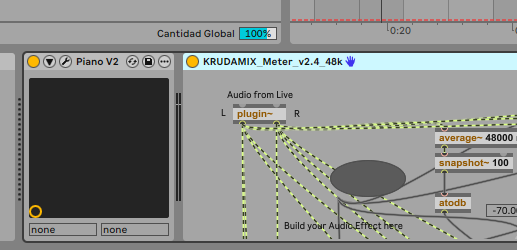
This is the only part you repeat on every song. The installer leaves the device in Ableton for you; putting it on the tracks is your call, because it is your session.
 1
1
-
Drag it in from Live's browser
It is under Categories → Max for Live → Max Audio Effect, named
KRUDAMIX_Meter. Drop it last in the chain, after everything else: it measures what comes out, not what goes in.
On which tracks? On the buses, not on all of them
It goes on the buses — the tracks that group others: SONG, DRUMS, BASS, SYNTHS — because that is where the sound adds up and where loudness is decided. A single track is measured through its bus. And you do not have to guess which: if one is missing, KRUDAMIX names it for you on the Work screen.
Three steps and you are in
-
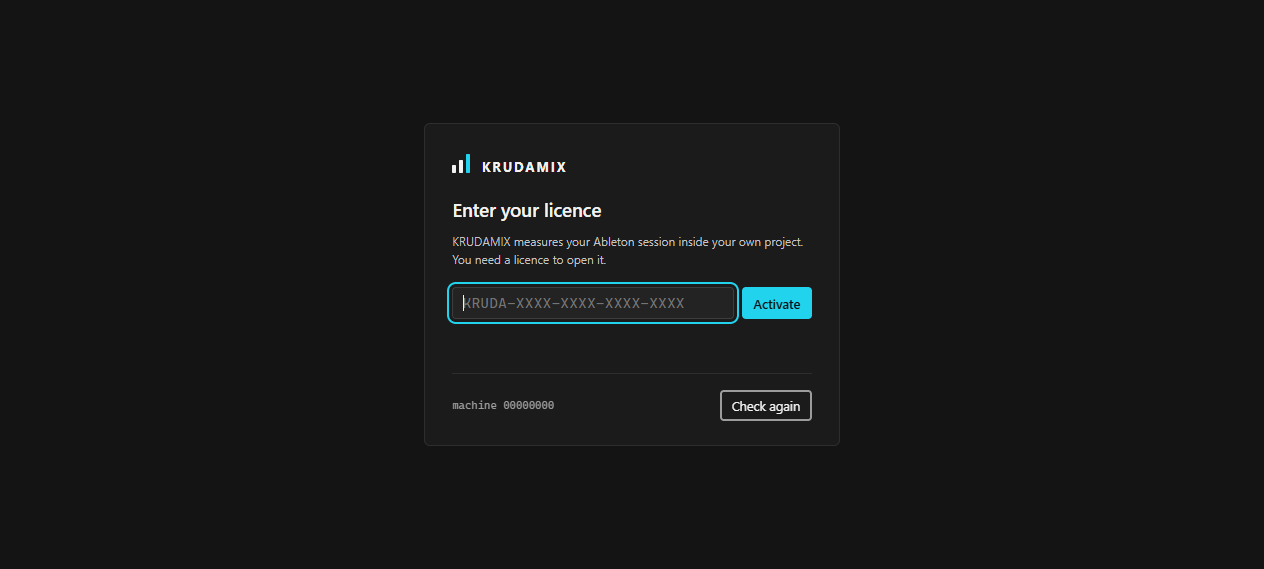
Enter your licence
It is the first and only thing you see. Paste the whole key — 25 characters with the dashes — and press Activate. It is checked against the server and stored: you will not type it again.
-
Declare the song
At the top, + New. Ableton does not report the name of the open project, so you provide it: "La última vez". You also choose which phase you are starting from. Spelling does not matter — "La última vez" and "la-ultima-vez" are the same song.
-
Look at the Work screen
It opens by itself. It tells you whose turn it is right now and what is on you. It is the only screen you need to understand to get started.
Five states, and you always know whose turn it is
The big label at the top answers the first question anyone asks when they open the window. The buttons change with the state: if an action is not possible right now, the button is not there.
Nobody is touching anything
What you see is from last time. The starting point of any day.
nobody workingYou gave it permission
You said how many cycles it may run, but the engine is not open yet. The button only appears if this install ships an engine.
your turnIt runs on its own
You can get on with your own things. Each cycle leaves a timestamped mark: that is what separates "working" from "the screen says it is working".
KRUDAMIX's turnIt stopped to ask you something
It needs your ears, a render or a decision. It will not continue until you resolve it.
your turnIt used up its cycles
It spent what you gave it and disarmed itself. It does not stay working without you knowing.
your turn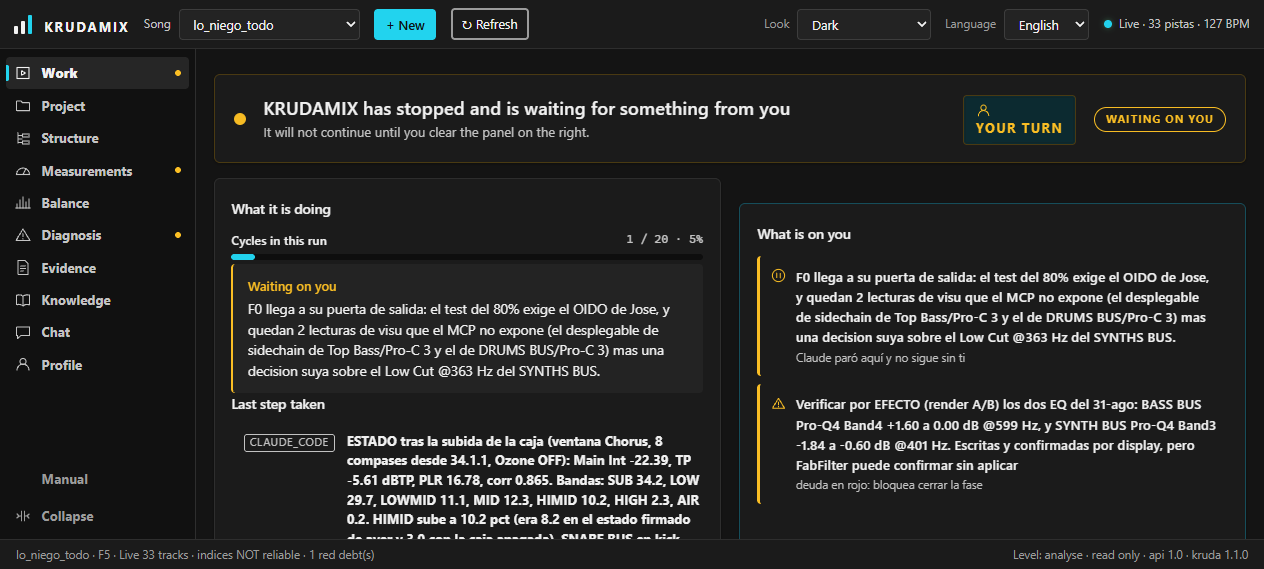
The cycles
How many steps in a row it may take before stopping on its own. Default 20, from 1 to 200. It is your handbrake: when they run out, it stops and tells you.
Pausing asks for a reason
And that is not red tape: a pause with no reason leaves whoever finds it — you, tomorrow — with no idea what to do about it. Write something like "needs my ears on the drop".
The three things you will press every day
Save a session snapshot
Records what tracks and devices are there, and in what order. Do it before touching anything and after moving tracks: it is what lets you know later whether what was read still holds. It reads Ableton and writes a file; it does not touch the mix.
Measure a render
You pick a WAV and say what it is —
SONG BUS, LEAD, KICK — and it gives you LUFS,
bands, correlation and, on top of that, whether the measurement itself is
trustworthy. It is the same engine phase 1 uses, so you will not be arguing
with the application about two different numbers.
Collect a render
The verb is deliberate: collect, not export. Live does not render through the API, so you fire the render yourself with Ctrl+Shift+R; KRUDAMIX watches the folder, waits for the WAV to stop growing, checks it against the signed profile and measures it. If it does not meet the profile, it is not measured.
The "To be able to measure" card
It appears only if a KRUDAMIX Meter is missing from some bus. If you do not see it, everything is in place: a green card saying all is well is noise you learn not to read. KRUDAMIX looks and reports, but installs nothing on its own — placing a meter means writing to your session.
Ten screens and when to look at each one
| Screen | What it tells you | When you look at it |
|---|---|---|
| Work | Whose turn it is, what is on you and how far along the song is. It opens by itself. | On opening. And every time you come back from Ableton. |
| Project | Two columns: what Ableton says right now and what is on record for the song. The volatile and what survives closing Live. | When you doubt whether the application is looking at the song you think. |
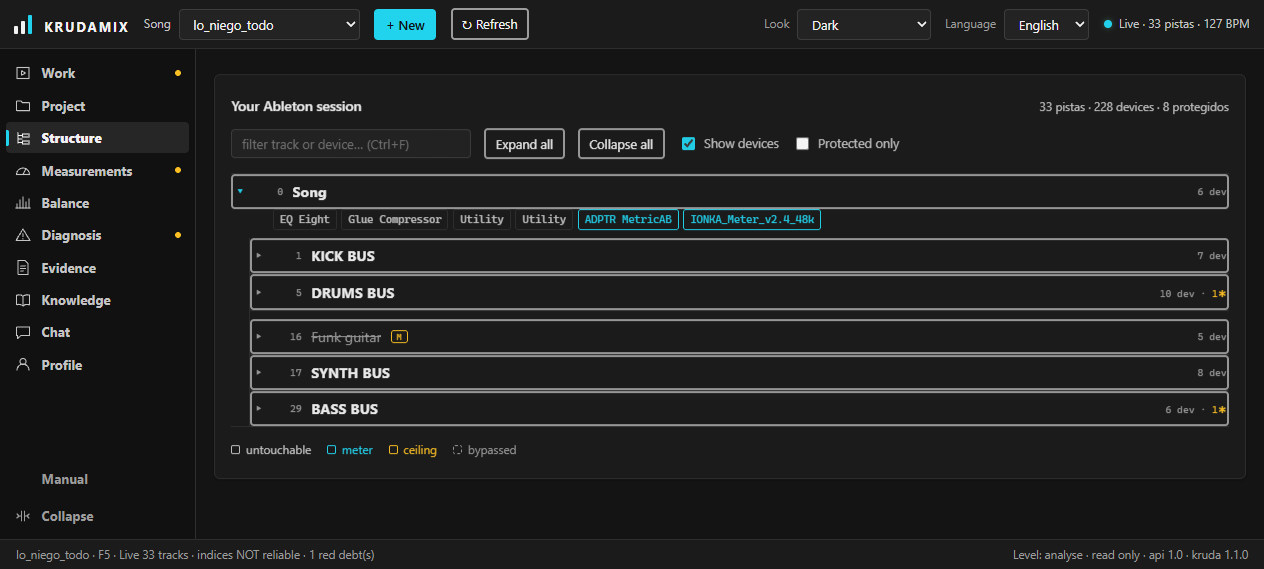
| Structure | The tree of your session: tracks, buses and devices, with untouchables, meters, ceilings and anything switched off marked by colour. | To understand an inherited session, or to find where a plugin is. |
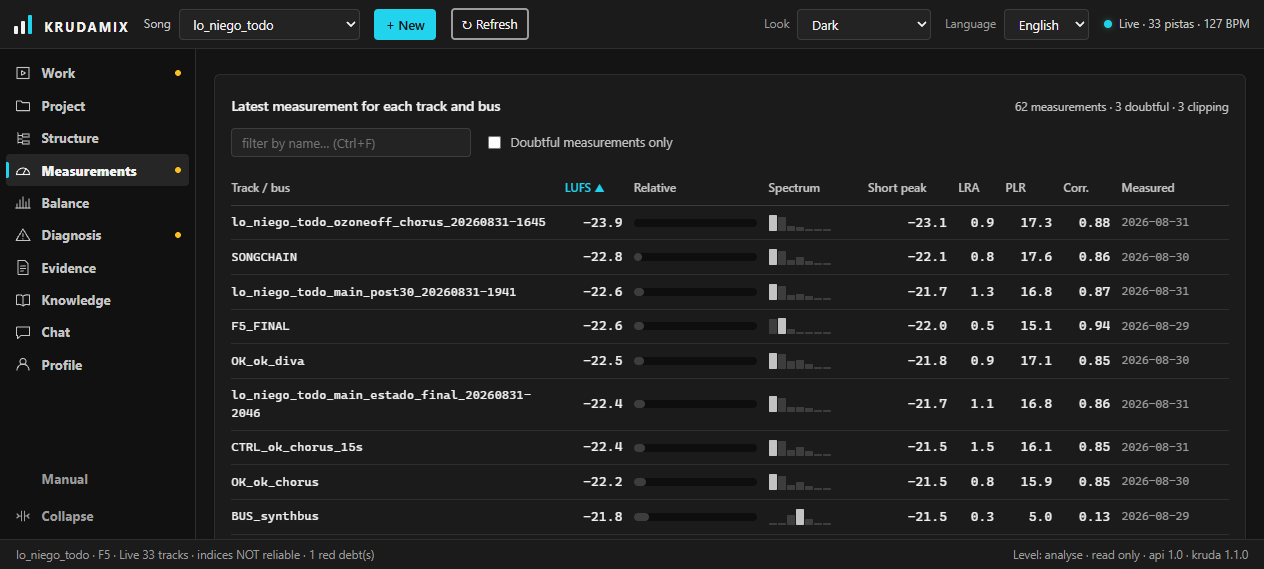
| Measurements | The latest reading for each track and bus. You can filter by name and show only the doubtful ones. | Before deciding anything by numbers. |
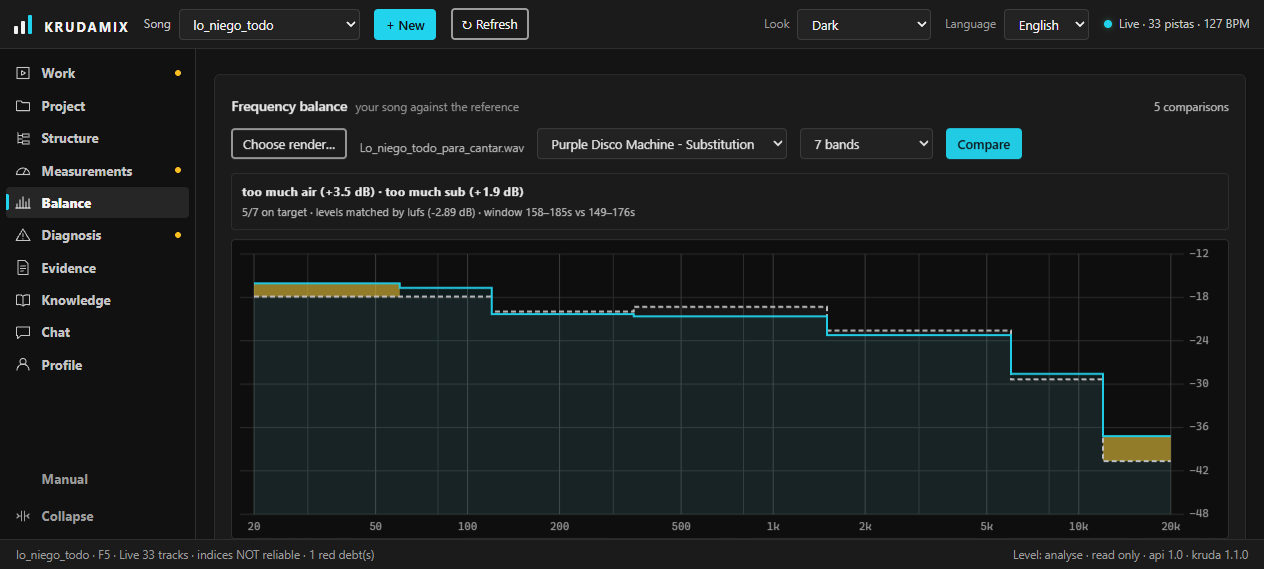
| Balance | The spectral comparator: your render against a commercial track, band by band. Where you have too much and where too little, in dB. | When the song already sounds like something and has to face the world. |
| Diagnosis | Verification debts — what was changed and not checked — and the list of untouchables. | Before closing a phase. |
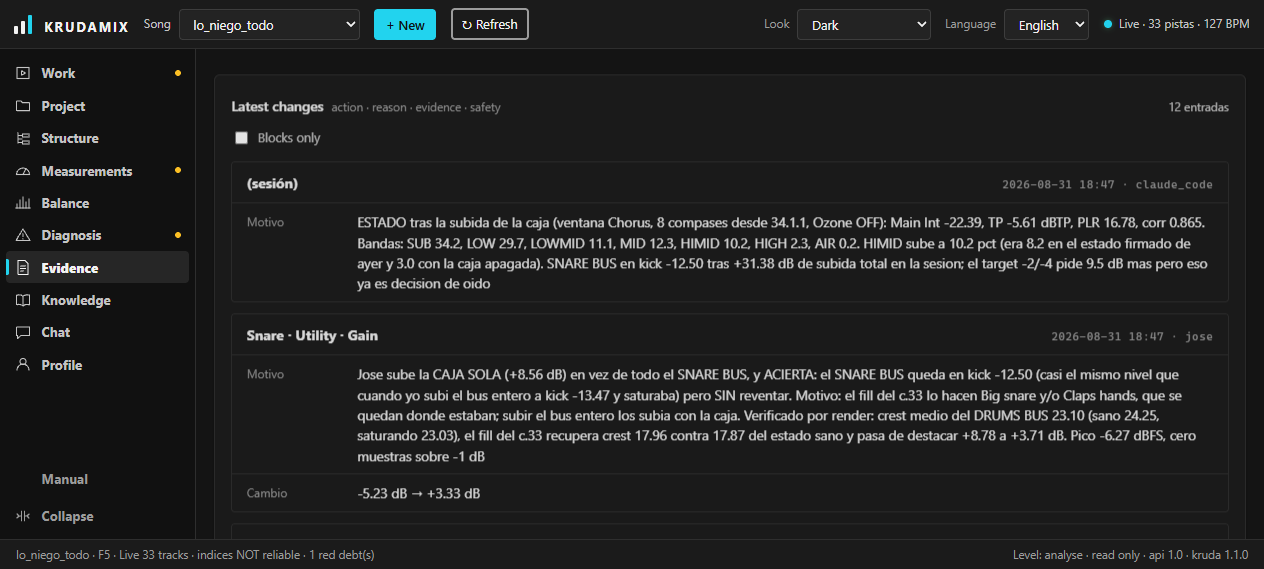
| Evidence | The log: action, reason, evidence and what the safety policy said. You can show only the blocks. | When something sounds different and you do not know what happened. |
| Knowledge | Which methodology cards get loaded to work, and what each one costs. Empty = the startup core. | Out of curiosity, or to see where a criterion comes from. |
| Chat | Ask about the mix to someone who already knows what phase you are in and what you have measured. | When the doubt is about judgement and not about data. |
| Profile | Your licence, the API key, usage and the keyboard shortcuts. | On day one, and then hardly ever. |
The spectral comparator: your song next to one that already works
You pick a render of yours and a commercial track, and KRUDAMIX lays one over the other, band by band. It does not give you a grade: it tells you where you have too much and where too little, and by how many dB. It is what anyone does with a reference alongside — but with the number written down, so there is no arguing ears against memory.
-
Pick the render
Choose render… opens the Windows file browser. Usually it will be the
SONG BUSWAV or the premaster, but any audio works: give it a drum stem and it compares the stem. -
Pick the reference
The dropdown beside it fills itself with whatever is in your
refsfolder. That is where you put the commercial tracks you use as a yardstick. -
Press Compare
The first time takes a few seconds, because it measures the whole reference. That measurement is saved: the next comparison against the same track comes straight back.
That is how a comparison reads. The drawing is not a screenshot: the heights are made up, so that the colour scheme is clear without talking about any particular song.
What you are looking at
The filled gap is the work
Red where you overshoot, violet where you fall short. Bands that are on target are not tinted: if they all were, the problem would not jump out. Hover a patch and it tells you which band it is and how many dB.
Steps, not a pretty curve
Each measurement is a whole band, not a point: "LOWMID −25.6 dB" describes the entire 120 to 350 Hz stretch. A smooth curve would assert a specific value at 200 Hz that nobody measured.
The axis is logarithmic
Like any analyser, and like the ear. Linear, the octave from 10 to 20 kHz would eat half the graph and the five below it — where a mix is decided — would be squeezed into a finger's width.
Below, the exact numbers
The graph says where; the table says how much, which is what you need to type a value into an EQ. Three columns: yours, the reference, and the difference.
The verdict is the first line, and it is a sentence
"too much mud (+3.2 dB) · not enough air (−2.1 dB)". The three most deviated bands come out, ordered by how far off they are, and beside them how many are on target. A band is marked off target from ±1.5 dB: below that, the difference between two passes of the system itself already swallows it.
Two resolutions, and they are not interchangeable
| View | What it is | When you use it |
|---|---|---|
| 7 bands | SUB, LOW, LOWMID, MID, HIMID, HIGH and AIR. This is the unit decisions are made in, and it matches the Measurements screen to the decimal: you will not be arguing with the application about two different numbers for the same render. | Always. It is the default view. |
| 31 third-octaves | Third-octave bands from 20 Hz to 20 kHz. The magnifying glass. Same engine and same filter as the 7-band view; a third-octave is just a narrower band-pass. | When you already know LOWMID is heavy and need to know whether it is mud spread out or a peak at 250 Hz. They are not fixed the same way. |
Changing the dropdown measures again, it does not rescale what is on screen: they are two different measurements of the same audio, and turning one into the other would be inventing bands.
Three things it does without asking you
They are the difference between a comparison that means something and two numbers that are not talking about the same thing. All three are written under the verdict, so you can check what it did.
It matches the levels
By LUFS, like MetricAB's loudness match: without it, the louder curve looks better at everything. And by LUFS rather than total energy — a song with 4 dB too much sub would drag its whole curve down when normalised, and would look as if it were missing mids and highs across the board.
It finds the dense stretch
Of both files, and it does not measure from second zero. Comparing your drop against the reference's intro gives several dB of error in the low end without either measurement being wrong.
It silences what is not music
A band sitting 35 dB below the loudest one stops voting: it is still drawn — hatched — but it does not count. Without that, the verdict was led by "too much sub (25 Hz) +18.5 dB": true and useless, because the reference has a high-pass there and there is nothing to compare.
Where the references go
In a folder called refs next to the application —
with a normal install, Documents\KRUDAMIX\refs. Put your
tracks there as WAV, AIFF or FLAC and they appear in the dropdown under the file
name, so it pays to call them "Kylie Minogue - Padam Padam" and not
"ref2". Audio does not ship in the installer: you create and fill that
folder. If you keep it somewhere else, point the IONKA_REFS_DIR
environment variable at it.
Everything is saved, and it opens ready
Every comparison is written into the song's folder. When you come back to the screen it is there, with the render and the reference from last time already set: you do not pick two things you already picked. Top right, how many you have. And if last time's render is gone — renamed or deleted — it says so when the screen opens, not after you press the button.
A reference is a yardstick, not a mould
The ±1.5 dB is the margin the application uses to draw the tick, not a law of mixing. A band at +1.8 dB is not a fault if the song sounds right; one at +1.2 dB may well be if it is the one covering the vocal. And like everything else in KRUDAMIX, this screen does not touch your session: it tells you how many dB apart you are, it does not move the EQ that closes the gap.
What is worth knowing and nobody asks until it fails
It checks itself once a day
Once every 24 hours against the server. If you lose internet you keep working for 14 days — the grace period. The window tells you how many are left; you will not find out on the day it runs out.
Change the key without reinstalling
In Profile → Licence. Useful for moving from a trial key to a purchased one, or for fixing a mistyped character. Beside it there is Revalidate now, which asks the server without waiting for tomorrow.
Chat spends from your account
It runs on an API key that you enter in Profile and that is stored outside the project. Every question uses your tokens, which is why the dropdown beside it — fast · normal · thorough — matters: it chooses how much thinking you are paying for.
Four shortcuts that save you the mouse
| Key | What it does |
|---|---|
| 1 … 9 | Switch screens, in the order of the menu on the left. Profile is the tenth and opens with the mouse: there is no "10" key. |
| Ctrl + R | Read everything again from Ableton and from disk. |
| Ctrl + F | Jump to the filter on whichever screen you are on. |
| Esc | Close the new-song form, or clear the filter. |
The words you are going to see
None of them belong to KRUDAMIX: they belong to mixing. If any of them sounds like nonsense, here it is in two lines and with no dancing around.
| Word | What it is |
|---|---|
| Bus | A track with no sound of its own: it groups others. Put the kick, the snare and the hats into a bus called DRUMS and you can raise the whole kit with one fader. KRUDAMIX measures mostly on the buses, because that is where the sound adds up and where it is decided whether the song hits hard or not. |
| Render | The audio file that comes out when you export your song from Ableton. A WAV. In Live: File → Export Audio/Video, or Ctrl+Shift+R. |
| Stem | A render of one part instead of the whole song: just the drums, just the vocals. Useful for looking at a problem without everything else covering it. |
| LUFS | How loud something is, measured the way a person hears it rather than the way a peak meter sees it. It is the unit Spotify and YouTube use to decide whether to turn you down. Always a negative number. −14 is louder than −20. |
| dB | The unit for everything that goes up and down in volume. The only thing worth remembering: +6 dB is double, and almost nobody hears a difference smaller than 1 dB. |
| Peak / clipping | The peak is the highest instant of the waveform. Go past the ceiling and the wave gets cut flat — that is clipping: it sounds dirty and it cannot be fixed afterwards. That is why KRUDAMIX marks anything with clipping in red. |
| Premaster | Your song mixed and exported, before mastering. It is what you send to whoever is going to master it, and what gets measured to know whether the mix is finished. |
| Reference | A commercial track that already sounds the way you want to sound, and that you compare yours against. Not to copy it: to know where you drift away from it. |
| Control Surface | What Ableton calls an outside program that is allowed to talk to it. That is where you pick KRUDAMIX. Nothing to do with keyboards or controllers, even though it shares the same list with them. |
| Remote Script | The piece of software that makes the above possible. It is a folder copied inside Ableton. Set up once and never touched again. |
| Phase | KRUDAMIX orders the work in phases (F0, F1, F2…): first the session's layout, then levels, then tone, and so on. The point is not to touch brightness before the volume is where it should be. |
| Snapshot | A list of what tracks and plugins your project has, saved with the date. It is what lets you know later whether something moved. |
What the window says and what it means
| What you see | What is happening | What to do |
|---|---|---|
| Live no responde | Ableton is closed, or the KRUDAMIX Control Surface is not selected in Live's preferences. | Open Live, check the Control Surface and press Ctrl + R. |
| That licence is not on record | The key does not exist on the server, or a character is wrong. | Copy and paste it whole, with dashes. It is 25 characters. |
| N days of grace left | The server could not be reached. You are inside the 14-day grace period. | Get online for a moment and press Revalidate now. No rush until the number starts dropping. |
| Meters missing | Some buses have no KRUDAMIX Meter, and without a meter there is no valid measurement. | Put them on the buses it points at. The installer leaves the meter in the Ableton folder where Live finds it. |
| No references in the refs/ folder | The Balance screen cannot find any audio to compare against. | Create a refs folder next to the application and put your
commercial tracks in it. Then Ctrl + R. |
| Last comparison's render is gone | The WAV you compared against last time has been moved, renamed or deleted. | Pick another with Choose render…. The old comparison is still saved; it is the file that is missing. |
| Armed, but not counting cycles | The engine is not open: arming grants permission, it does not start anything. | Press Start the engine. A separate window opens, and that is where you see what it does. |
| The numbers do not match what you hear | The session has changed since it was last read: moving tracks or devices reorders what was read. | Ctrl + R and Save a session snapshot. |
The mixing engine does not ship in the installer
The Start the engine button needs the mixing project installed alongside the application, and the distributed copy does not carry it. That is why the button does not appear where there is no engine: a line explains it instead. Everything else — reading the session, measuring, the structure, the log, the chat — works the same.